How to Cancel Your WriterGPT Subscription
Muhammad Talha · 2026-04-27
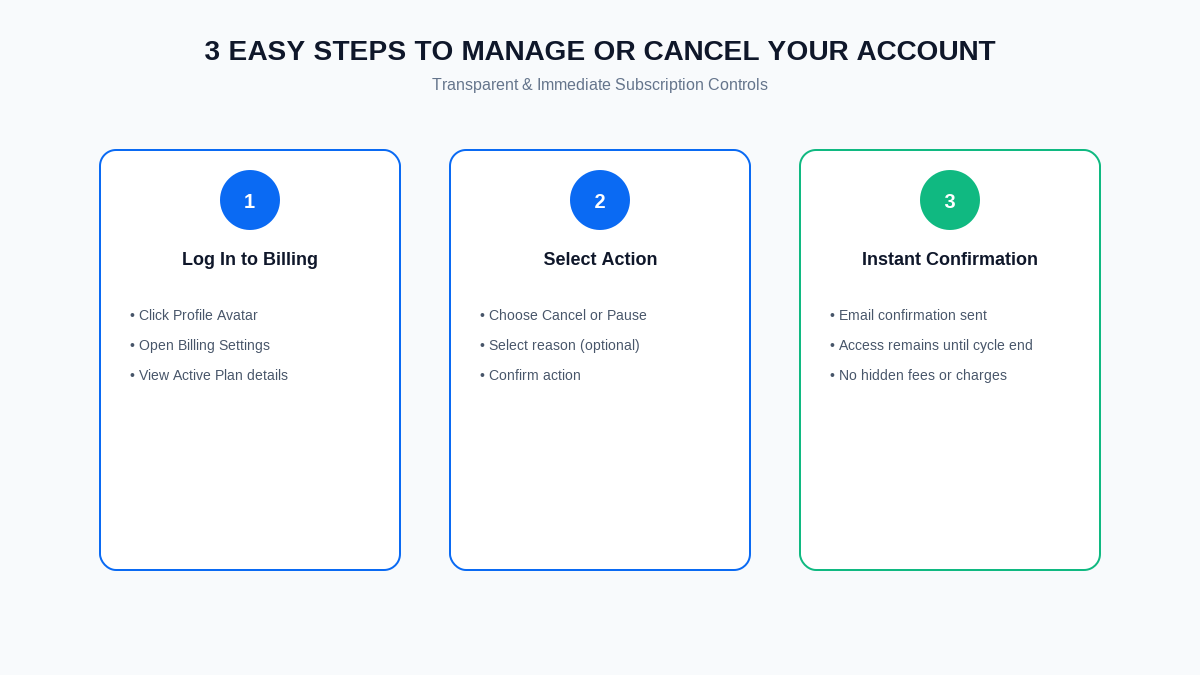
<p class="lead">If you need to cancel your WriterGPT subscription, the whole process takes less than a minute. This guide walks you through exactly where to click, what to expect after cancellation, and how to reactivate your plan later if you change your mind.</p> <h2 id="before-you-cancel">Before You Cancel</h2> <p>A few things worth knowing before you proceed:</p> <ul> <li><strong>You keep full access until the end of your billing period.</strong> If you cancel mid-month, your Pro / Business / Agency features stay active until the renewal date you would have been charged on.</li> <li><strong>Unused word credits do not roll over after the period ends.</strong> Once your account drops to the Free tier, the monthly word and image quota resets to free-tier limits.</li> <li><strong>Your articles, templates, and connected sites stay safe.</strong> Cancellation only stops billing — none of the content you've already generated is deleted.</li> <li><strong>WordPress, Shopify, and other publishing connections remain in place</strong>, but bulk publishing and premium-only features (Content Calendar, Repurpose Hub, Semantic Writer) will be limited once you drop to Free.</li> </ul> <h2 id="cancel-steps">Cancel Your Subscription in 4 Steps</h2> <p>WriterGPT uses Stripe to manage all billing, so cancellation happens through the secure Stripe Customer Portal — accessible directly from your dashboard.</p> <h3>Step 1 — Sign in to WriterGPT</h3> <p>Go to <a href="https://writer-gpt.com/auth">writer-gpt.com</a> and log in with the email address tied to your subscription.</p> <h3>Step 2 — Open Subscription Settings</h3> <p>From the sidebar, click <strong>Subscription</strong> (or click the plan badge next to your profile). You'll see your current plan, renewal date, and usage.</p> <h3>Step 3 — Click "Manage Subscription"</h3> <p>Press the <strong>Manage Subscription</strong> button. A new tab will open with the Stripe Billing Portal — this is where Stripe handles plan changes, payment methods, and cancellations on our behalf.</p> <h3>Step 4 — Cancel Plan and Confirm</h3> <p>In the Stripe portal:</p> <ol> <li>Click <strong>Cancel plan</strong>.</li> <li>Optionally select a reason (this helps us improve — but it's not required).</li> <li>Confirm the cancellation.</li> </ol> <p>You'll receive an email confirmation from Stripe within a few minutes, and your WriterGPT dashboard will show "Cancels on [date]" next to your plan.</p> <h2 id="reactivate">Changed Your Mind? Reactivate Anytime</h2> <p>If you cancel but decide to keep your subscription before the period ends, just open <strong>Manage Subscription</strong> again and click <strong>Renew plan</strong>. Your billing continues without interruption — no need to re-enter card details or lose any data.</p> <p>If your subscription has already ended, you can simply re-subscribe from the <strong>Subscription</strong> page and pick up right where you left off.</p> <h2 id="downgrade">Downgrade Instead of Canceling</h2> <p>If WriterGPT still has value for you but the current plan feels too large, consider downgrading instead. From the Stripe Billing Portal, click <strong>Update plan</strong> and pick a smaller tier — Stripe automatically prorates the difference so you're only charged fairly for the change.</p> <h2 id="faq">Frequently Asked Questions</h2> <h3>Will I get a refund for the unused portion of my month?</h3> <p>WriterGPT does not issue automatic prorated refunds for cancellations mid-period — instead, you keep full premium access until the end of the period you've paid for. If you believe you have a special circumstance, contact our team.</p> <h3>What happens to my generated articles after cancellation?</h3> <p>All articles, drafts, knowledge base files, internal links, and connected sites remain in your account. You can continue to view, edit, export, and even publish existing articles to WordPress on the Free tier — only generation of new premium-tier content is restricted.</p> <h3>Will my WordPress / Shopify connection be removed?</h3> <p>No. Your connected sites stay linked. However, bulk publishing jobs and premium publishing automations require an active paid plan to run.</p> <h3>Can I cancel without logging in?</h3> <p>Cancellations must be initiated from inside your account so we can verify ownership of the subscription. If you've lost access to your email, please contact support.</p> <h2 id="help">Need Help?</h2> <p>If you run into any issue during cancellation — for example, you don't see the <strong>Manage Subscription</strong> button, or your subscription was created under a different email — head to our <a href="https://writer-gpt.com/contact">Contact page</a> and our team will sort it out for you, usually within one business day.</p> <p><em>We're sorry to see you go. If there's something specific that didn't work for you, we'd genuinely love the feedback — it shapes what we build next.</em></p>Visual Summary